How I Made My Homelab Work Everywhere
I run several services on a Synology NAS at home. My original setup used .local hostnames and port numbers, with addresses like http://nas.local:8000. It worked on my home network, but I could never remember which port belonged to which service.
Away from home it was worse. I could connect to my network through Tailscale, but the .local hostnames stopped working because mDNS doesn’t cross the tunnel. I had to use the NAS’s IP address instead, assuming I could remember that and the port number.
I wanted an address like bookmarks.home.arpa to work both at home and over Tailscale, with nothing exposed to the internet. The setup uses Pi-hole for DNS, Synology’s reverse proxy for routing, and Tailscale for remote access.
Local DNS
.local was the first problem. It is reserved for mDNS, which is useful for discovering devices on a local network but not for names that need to work across a VPN.
I chose home.arpa instead. It is reserved for home networks, so it won’t conflict with a real domain or send queries out to public DNS servers.
I already run Pi-hole for ad blocking. Since all my services currently live on the same NAS, I added a wildcard rule that sends every home.arpa name to its LAN address:
local=/home.arpa/
address=/home.arpa/192.168.1.100 # NAS IP address
The local line stops queries for home.arpa being forwarded upstream. The address line maps every name beneath it to the NAS.
Pi-hole v6 does not load files from /etc/dnsmasq.d by default. I enabled Load additional dnsmasq configs from /etc/dnsmasq.d under Settings → All settings → Miscellaneous.
My router also hands out the Pi-hole address as its DNS server through DHCP. After restarting Pi-hole, names such as bookmarks.home.arpa resolved to the NAS from any device on the LAN.
Reverse proxy
DNS sends every home.arpa request to the NAS. Synology’s reverse proxy then sends it to the right service. A typical entry looks like this:
- Source:
bookmarks.home.arpaon port 80 - Destination:
http://127.0.0.1:8000
The reverse proxy uses the hostname to choose a local port. I can keep adding services without having to expose or remember their port numbers.
Tailscale
For remote access, the NAS advertises my LAN subnet (192.168.1.0/24) as a Tailscale subnet route. After approving the route in Tailscale, my other tailnet devices could reach the NAS by its LAN address.
I then added Pi-hole as a restricted nameserver for home.arpa in Tailscale’s DNS settings. Queries for that suffix now go to Pi-hole when I am connected remotely. MagicDNS remains enabled for the Tailscale device names.
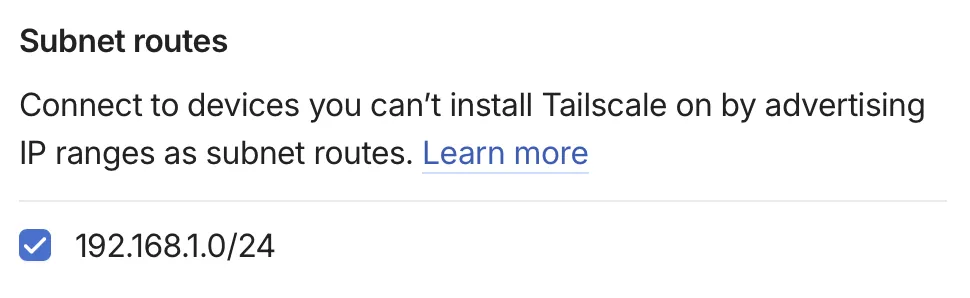
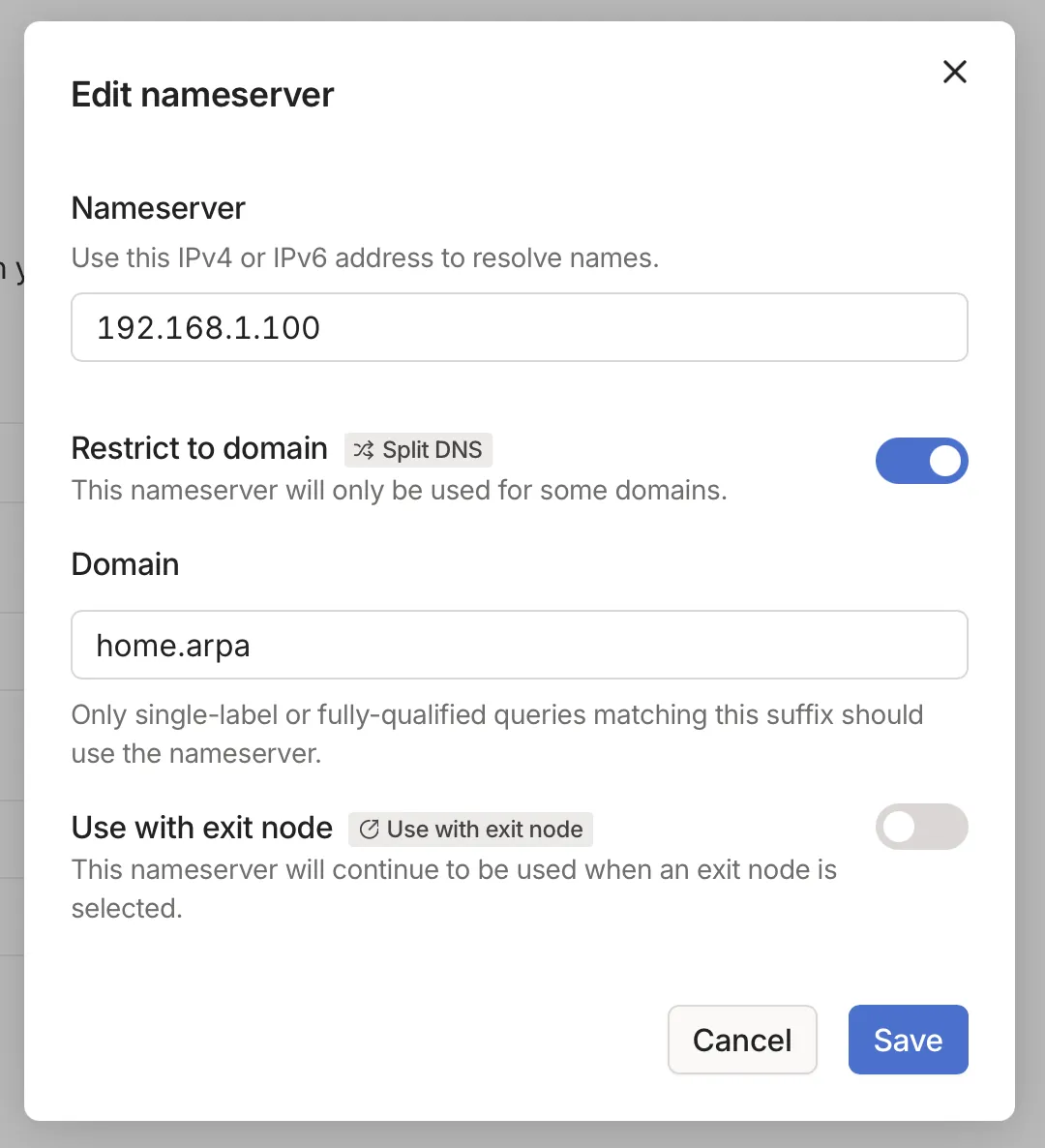
The subnet route needs to be approved before Tailscale can reach Pi-hole’s LAN address.
HTTPS
Public certificate authorities will not issue certificates for home.arpa. Using HTTPS would mean running a private certificate authority with something like mkcert or step-ca, or switching to a real domain and obtaining a wildcard certificate through a DNS-01 challenge.
I haven’t done either yet. My services are only reachable on the LAN or through an encrypted Tailscale tunnel, so plain HTTP is an acceptable trade-off for me. Traffic is still unencrypted on the LAN, though, so this may not be the right choice on a network with devices or users you don’t trust.
I can now use bookmarks.home.arpa at home or away, and I no longer need to keep track of port numbers.
